Learn how to install IPTV Poland in Poland on Smart TV, Android, iOS, MAG and Firestick. Simple and fast IPTV installation guide for Polish users.
Android
How to Install IPTV Poland on Android (Phone, Tablet & Android TV)
Step 1: Make sure your Android device (phone, tablet or Android TV) is connected to a stable internet connection.
Step 2: Download an IPTV player application from the Google Play Store that supports IPTV playlists.
Step 3: Open the IPTV application and enter the login details or playlist information provided after your IPTV Poland subscription is activated.
Step 4: Save the settings and allow the application a few seconds to load the channels.
Step 5: Select a channel category and start watching your favorite content.
✔ IPTV Poland is now successfully installed and ready to use on your Android device.
Apple / IOS
How to Install IPTV Poland on iPhone & iPad (iOS)
Step 1: Ensure your iPhone or iPad is connected to a stable internet connection.
Step 2: Download an IPTV player application from the Apple App Store that supports IPTV playlists, such as iBO Player, iBO Pro, IPTV Smarters Lite, or IPTVX.
Step 3: Open the IPTV application and enter the login details or playlist information provided after your IPTV Poland subscription is activated.
Step 4: Save the settings and wait a few seconds while the channels load.
✔ IPTV Poland is now successfully installed and ready to use on your iOS device.
Smart TV
How to Install IPTV Poland on Smart TV
Step 1: Download an IPTV player application from the app store on your Smart TV (Samsung, LG or other supported Smart TVs).
Step 2: Open the IPTV application after installation. A MAC Address will be displayed on the screen.
Step 3: Send the MAC Address to our support team via WhatsApp, Email, or Live Chat to activate your IPTV Poland subscription.
Step 4: After a few minutes, restart or reboot your Smart TV, then open the IPTV application again.
✔ Your IPTV Poland service is now ready to use.
MAG BOX
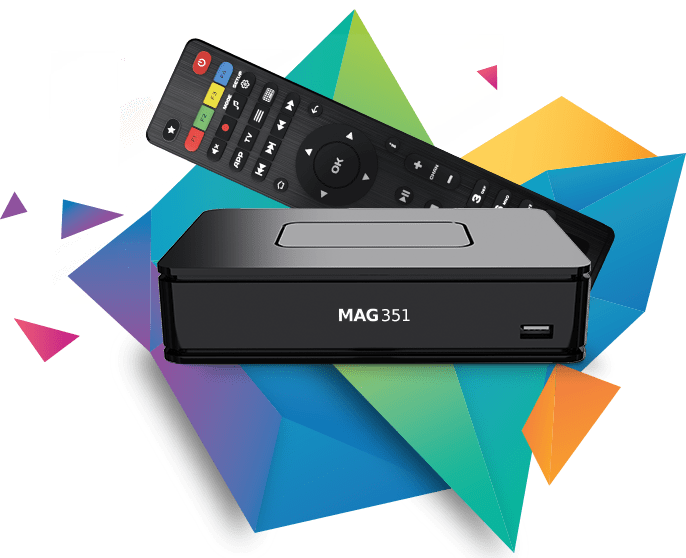
How to Install Poland IPTV on MAG Box
Step 1: Locate the MAC Address displayed on your MAG Box screen.
Step 2: Send the MAC Address to our support team via WhatsApp, Email, or Live Chat to activate your IPTV Poland subscription.
Step 3: After activation, you will receive the portal URL from our team.
Step 4: Restart or reboot your MAG Box, then open the IPTV application.
✔ IPTV Poland is now successfully installed on your MAG Box.
Windows/Mac
How to Install poland iptv on Windows & Mac
Windows Method: IPTV Poland can be used on Windows computers through IPTV-compatible media player applications. After installing a suitable IPTV player, simply enter the login or playlist details provided after your subscription is activated.
Mac Method: IPTV Poland also works on Mac devices using IPTV-compatible applications. Once the app is installed, add your access details and start watching instantly.
✔ IPTV Poland is now ready to use on your Windows or Mac device.
Windows/Mac
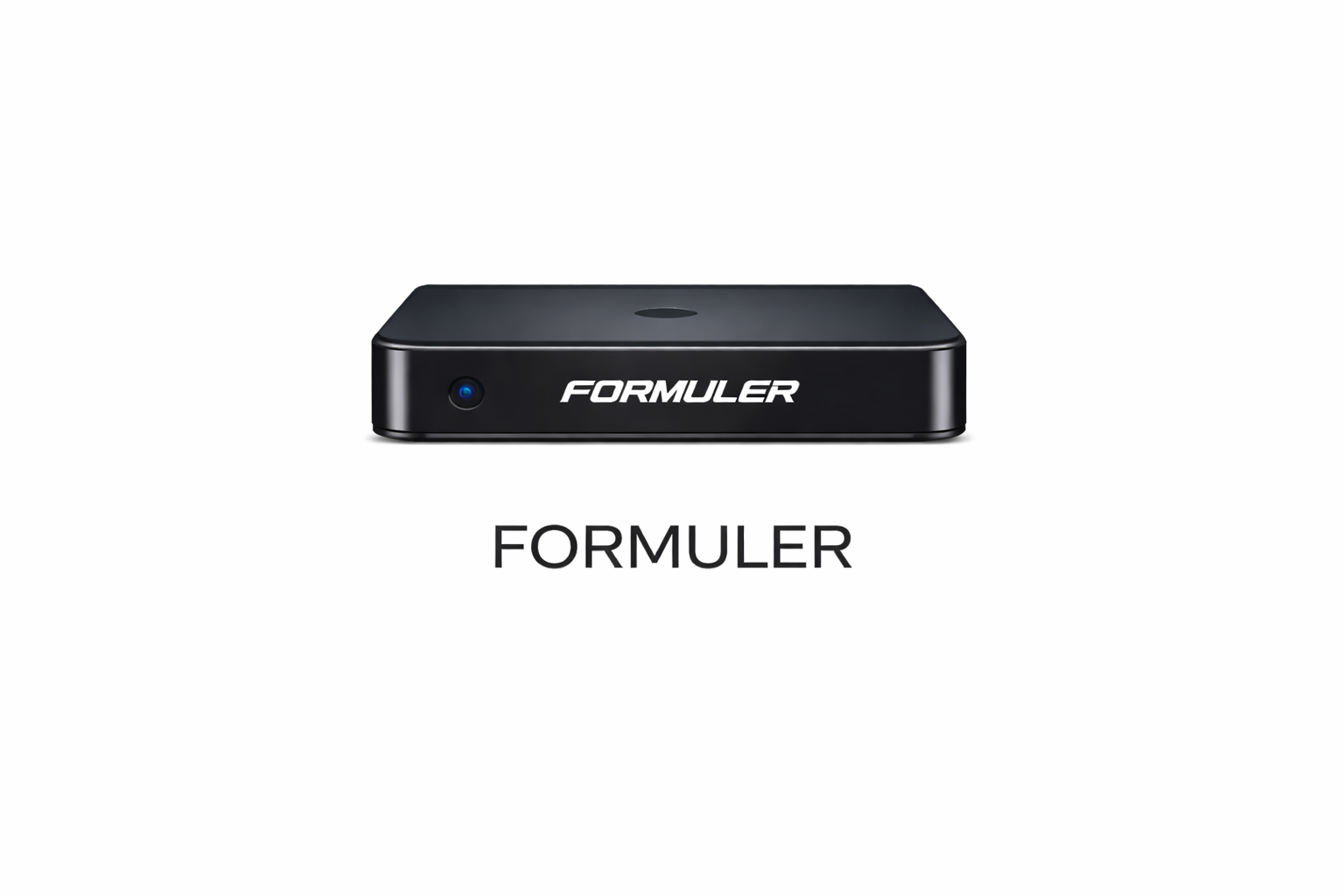
How to Install IPTV Poland on Formuler Box
Step 1: Turn on your Formuler device and make sure it is connected to the internet.
Step 2: Open the IPTV application available on your Formuler box. You will find a section to enter login details or a portal URL.
Step 3: Send us your Formuler device information (such as MAC Address or device ID) via WhatsApp, Email, or Live Chat.
Step 4: After activation, our team will provide the required portal URL or login details.
Step 5: Restart your Formuler device, open the IPTV application, and start watching.
✔ IPTV Poland is now successfully installed on your Formuler box. Formuler devices are widely used in Poland and are fully compatible with IPTV Poland, offering fast setup, stable streaming and access to Polish and international TV channels.
Windows/Mac
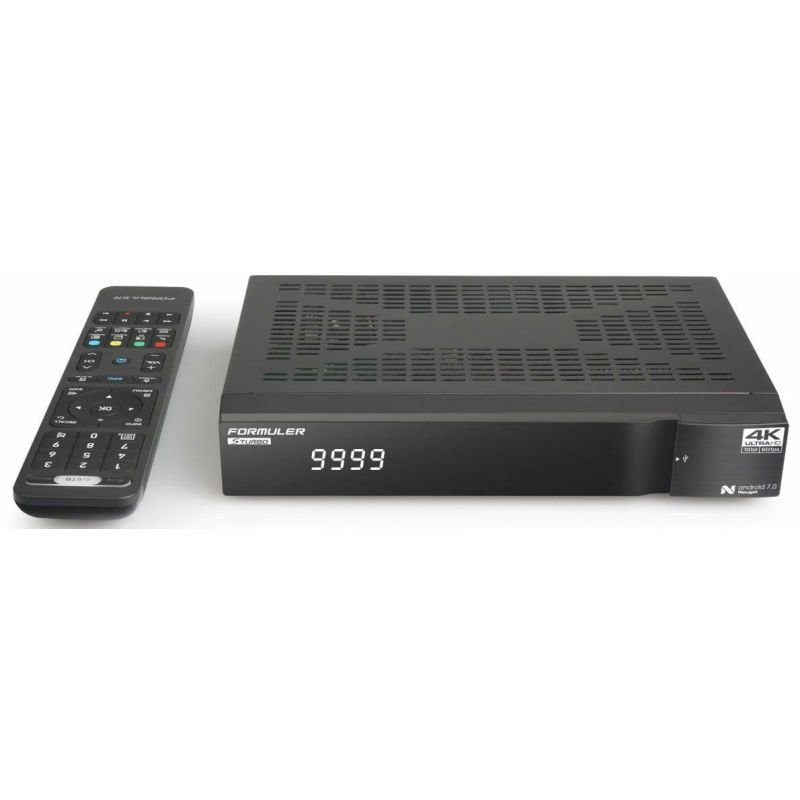
How to Setup IPTV Poland on Formuler STB 6500
Step 1: Make sure your Formuler STB 6500 is connected to the internet (Wi-Fi or Ethernet).
Step 2: Turn on your Formuler box and open the MYTV Online / MYTV Online 2 application from the main menu.
Step 3: Choose Add Portal and enter the portal URL provided after your IPTV Poland subscription is activated.
Step 4: Enter the username and password (or MAC-based details) we send you after purchase.
Step 5: Save the settings and allow the application a few seconds to synchronize and load channels.
✔ IPTV Poland is now successfully installed and ready to use on your Formuler STB 6500.